
Build product grids instantly with our automated tool. Generate multiple catalog pages featuring your products in seconds.
AutoGrid takes the hassle out of building product grids. Choose customizable layouts and product cards, and your catalog stays up-to-date as product information changes.
When to Use AutoGrid
| Scenario | Use AutoGrid | Use Manual Placement |
|---|---|---|
| Many products (10+) | ✅ Best choice | ❌ Too slow |
| Consistent grid layout | ✅ Perfect | ⚠️ Tedious |
| Different card sizes on the same page | ✅ Yes — use Full-Page Layouts | ⚠️ Possible but slow |
| Custom page-by-page design | ⚠️ Less flexible | ✅ Full control |
| Quick catalog updates | ✅ Automatic | ❌ Manual work |
Grid size is uniform; layouts are not. The Columns × Rows setting below applies one size to every product in that AutoGrid — that is what it is for. Mixing sizes on a page is a different control: switch the Design tab from Card Grid to Full-Page Layouts (§ 3). You do not need a separate AutoGrid per size.
Quick Start
- Open catalog in Designer
- Click Add → AutoGrid
- Select products (collection or individual)
- Choose Product Card and grid size
- Generate → Multiple pages created automatically
1. Creating an AutoGrid
Access AutoGrid
In the Catalog Designer, click Add to see page type options, then select AutoGrid.
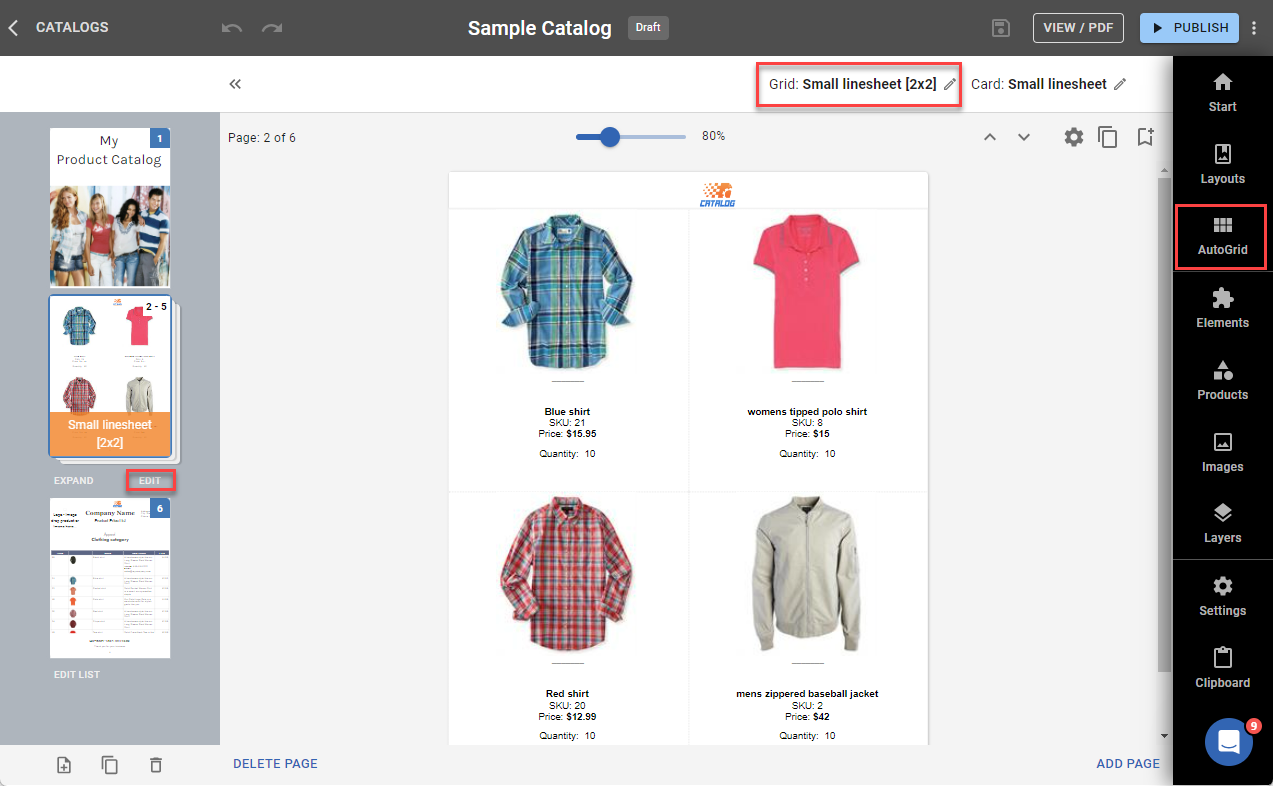
You can also edit existing AutoGrids from here.
AutoGrid Overview
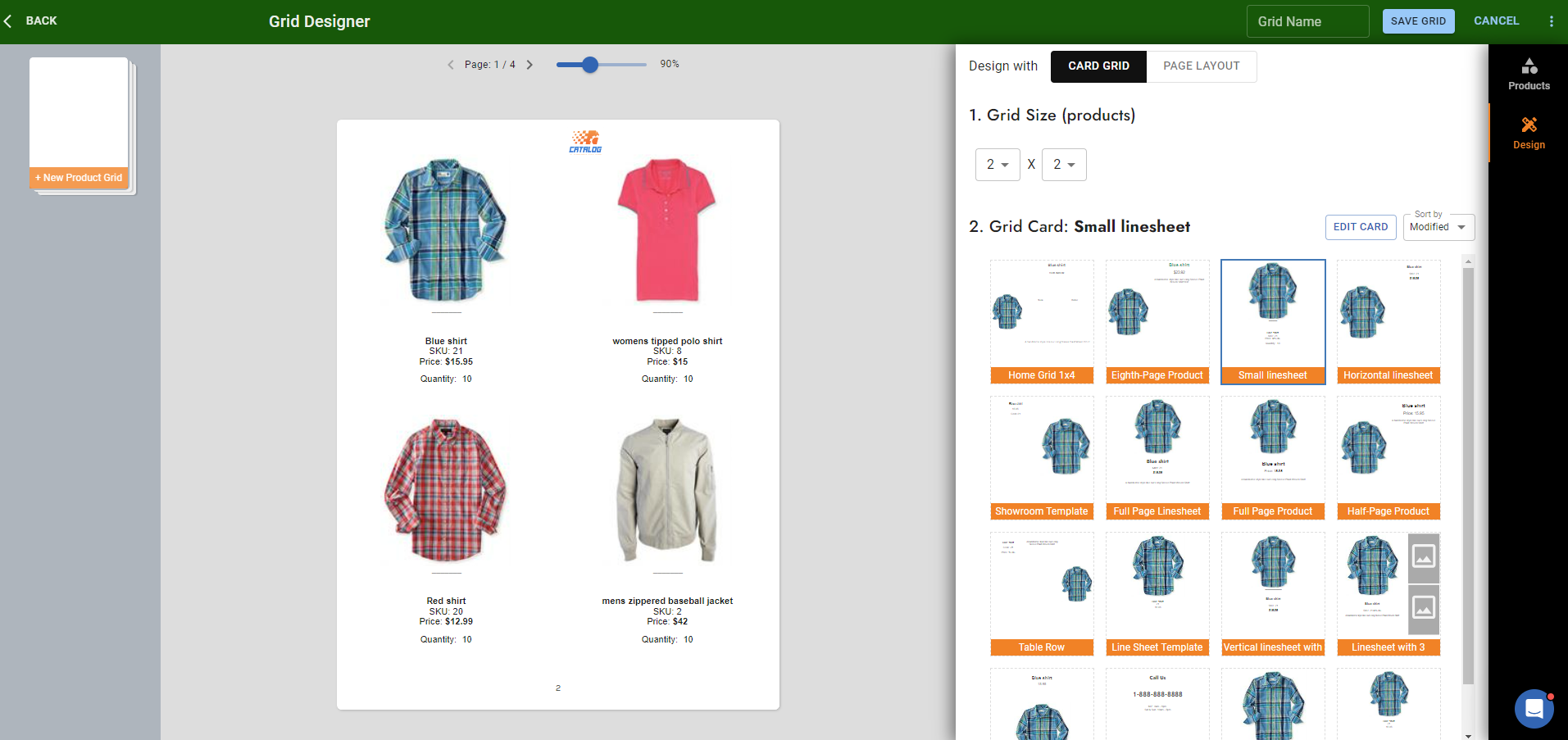
The AutoGrid panel has two main sections:
- Products: Select which products to include
- Design: Configure layout and appearance
2. Selecting Products
Start Product Selection
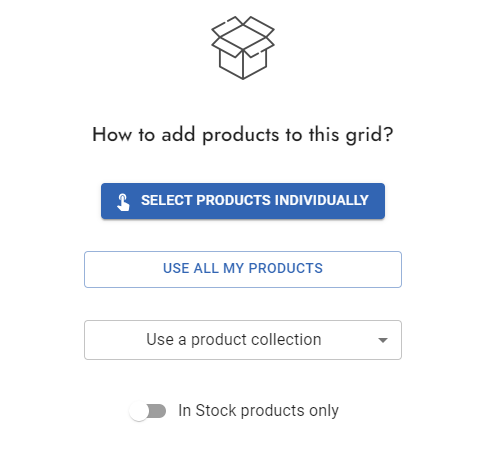
Choose how to select products:
| Method | Best For | Order Control | New Products Sync? |
|---|---|---|---|
| Manual Selection | Specific curated products | Full (drag, sort by field) | ❌ No - fixed selection |
| Category | Products in a category | From category | ✅ Yes - syncs with category |
| Collection | Organized product groups | From collection | ✅ Yes - syncs with collection |
| All Products | Complete catalog | From database | ✅ Yes - new products appear |
Note: Product field changes (name, price, images) update automatically in ALL modes. The difference is whether new products added to a collection automatically appear in the grid.
Manual Product Selection
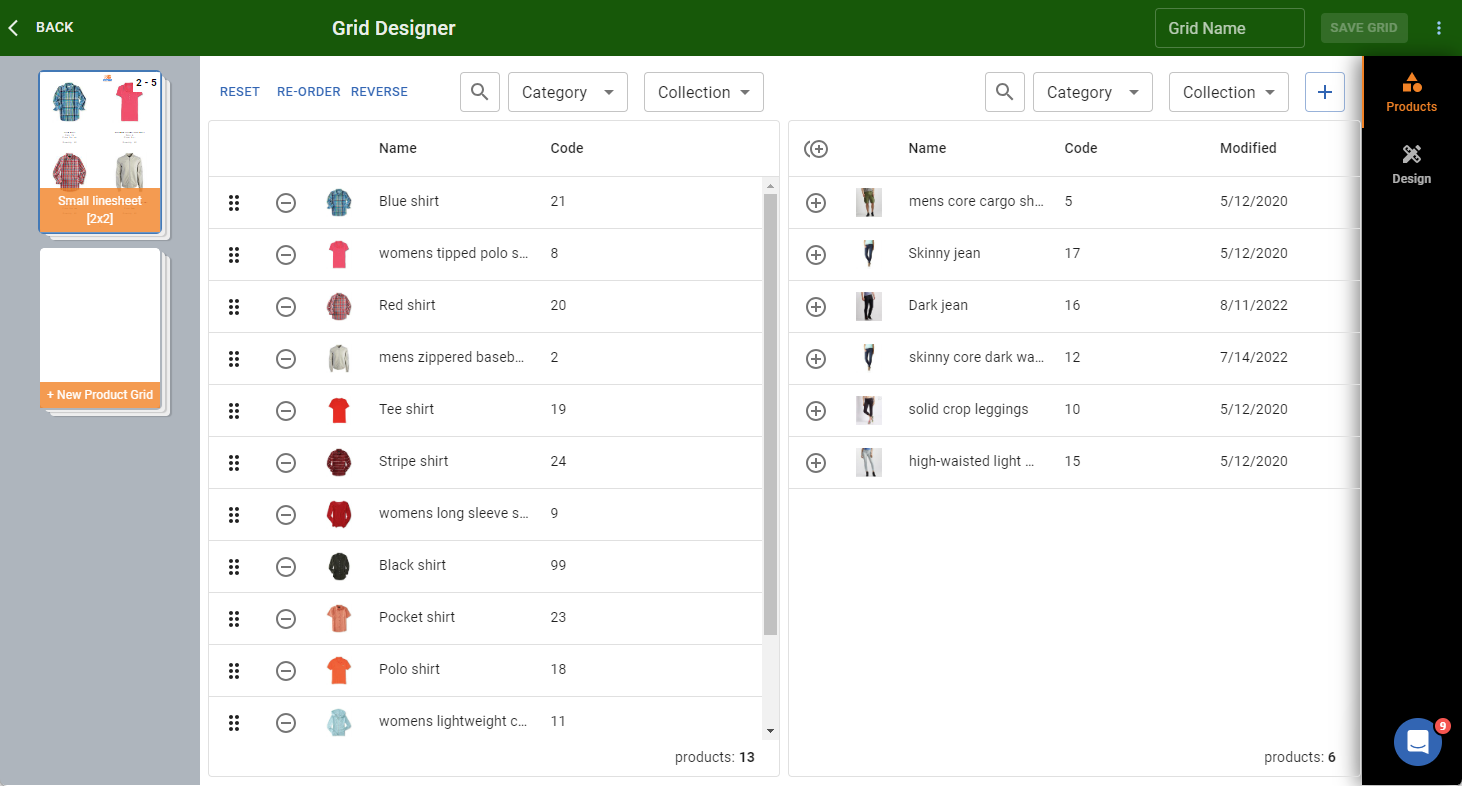
For manual selection:
- Browse products using filters (search, category, collection)
- Click to add/remove from selection
- Selection is fixed (won't auto-update for new products)
Ordering options for manual selection:
- Drag: Reorder products manually by dragging
- Re-Order: Sort by any product field (Name, Price, Code, etc.)
- Reverse: Flip the current order
Filtering Products
When browsing products to add, use these filters:
| Filter | Purpose |
|---|---|
| Search | Find by any field (name, code, description) |
| Category | Show only products in a category |
| Collection | Show only products in a collection |
Product Options
- InStock Products Only: Toggle to show only products with inventory (available in All Products mode)
3. Grid Design
Choosing a Product Card
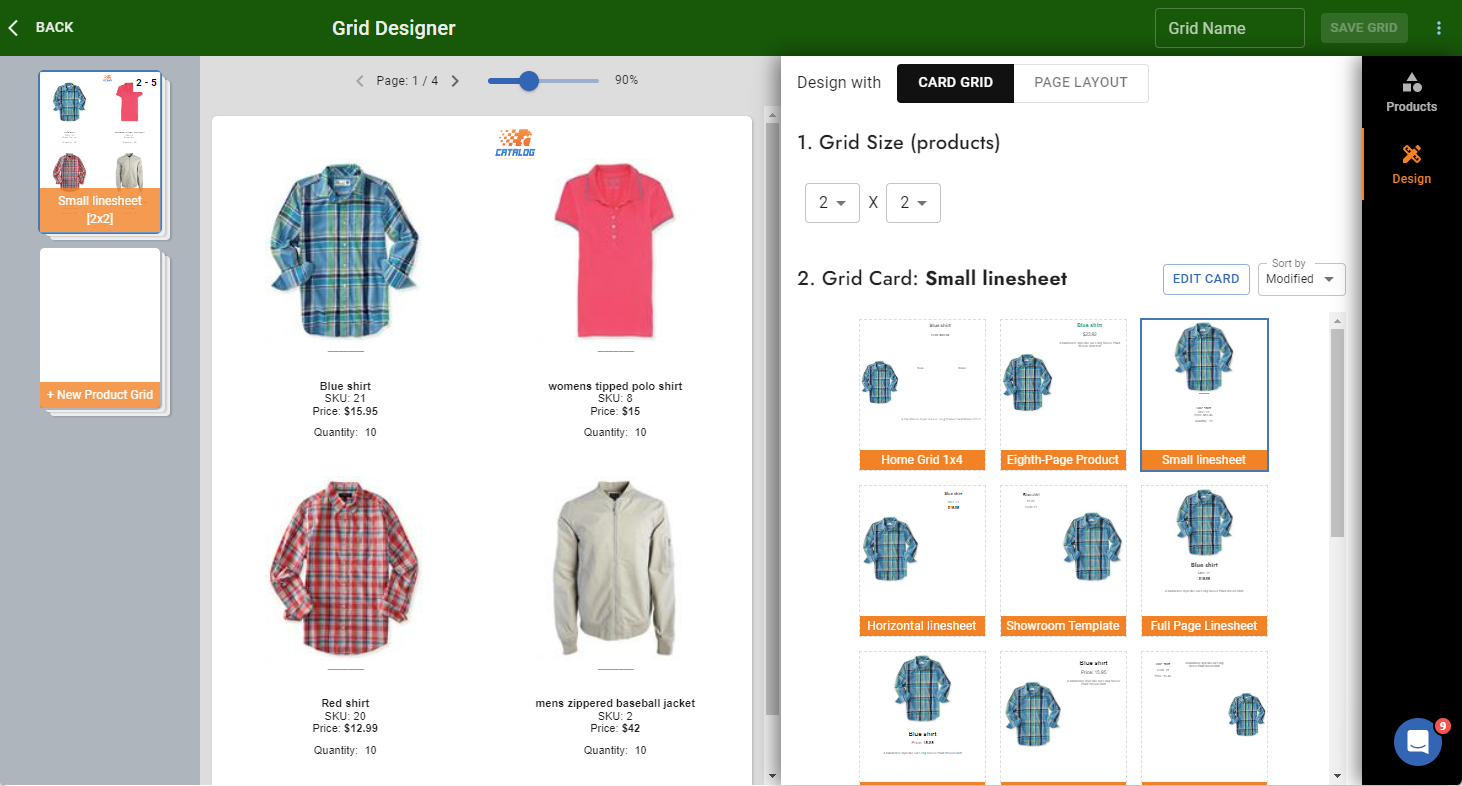
Select which Product Card design to use for displaying products:
- Preview different cards before selecting
- Cards determine how each product looks in the grid
- Create custom cards at Design → Cards
Tip: Create your Product Card first, then build the AutoGrid. See action:productCard for card design.
Grid Size Configuration
Configure your grid layout:
- Columns: 1-12 products per row
- Rows: 1-12 products per column
- Products per page = columns × rows
Common configurations:
| Layout | Columns × Rows | Products/Page | Best For |
|---|---|---|---|
| Gallery | 3 × 3 | 9 | Visual products |
| Catalog | 4 × 4 | 16 | Medium detail |
| Price List | 2 × 6 | 12 | Detailed cards |
| Showcase | 1 × 1 | 1 | Featured items |
Full-Page Layouts
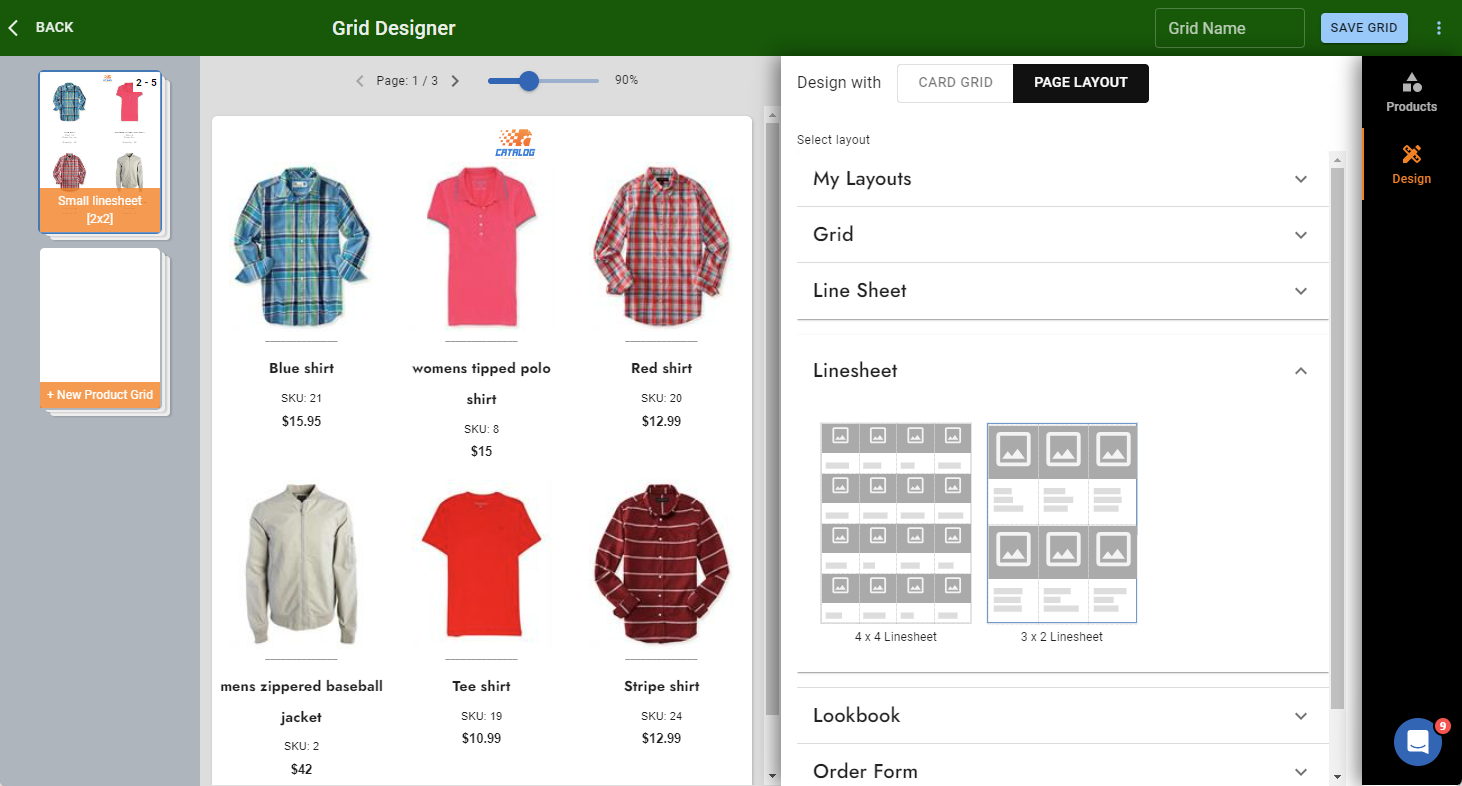
Instead of a simple grid, choose pre-designed full-page layouts:
- Professional designs ready to use
- Mix different card sizes on one page
- Layouts include headers and decorative elements
Colors belong to the layout. Background bars, shapes and product text styling live in the layout, not the page, so Page Layout mode offers only the layout picker. Built-in and shared layouts are read-only. With the built-in layout selected in the grid panel, click Copy to my layouts: the copy is created in your account and the page switches to it right away, in the same tab. The note then reads "<name> is yours" and offers an Edit layout button that opens it in the Layout Designer. If it uses white product text on a dark background, recolor the text too when you lighten it. Or switch the page to Card Grid, where colors come from your product card.
4. Generated Pages
After configuration, click Generate to create pages:
- Products automatically flow across multiple pages
- Page count depends on product count and grid size
- Each page maintains consistent layout
What Happens After Generation
- Pages appear in your catalog's page list
- Products display with your selected card design
- Changes to products automatically update the grid
- You can still edit individual pages if needed
5. Updating Your AutoGrid
Automatic Updates
In ALL modes, these changes update automatically:
- Product information (name, price, images)
- Product Card design changes
Only in Collection/All Products mode:
- New products added to collection appear in grid
- Products removed from collection disappear from grid
Re-generating the Grid
To change grid settings (size, card, products):
- Click Add → AutoGrid → select existing grid
- Modify settings
- Click Generate to rebuild
What Breaks the AutoGrid Connection
⚠️ Warning: These changes disconnect pages from AutoGrid:
| Change | Result |
|---|---|
| Rename grid | Pages become independent |
| Change grid size | New pages created |
| Change Product Card | New pages created |
| Manually edit page structure | Page disconnects |
| Delete products from page | Page may disconnect |
Safe edits that preserve connection:
- Edit text elements (headers, footers)
- Add decorative elements
- Adjust element positions slightly
Best Practices
Before Creating AutoGrid
- Organize products first - Create collections for logical grouping
- Design your card - Product Card determines appearance
- Plan grid size - Consider how many products per page
Efficient Workflow
- Use collections for dynamic updates
- Create one AutoGrid per product section
- Use consistent card designs across grids
- Preview before generating final pages
Common Patterns
Multi-section catalog:
- AutoGrid 1: "New Arrivals" collection → 3×3 grid
- AutoGrid 2: "Best Sellers" collection → 4×4 grid
- AutoGrid 3: "Sale Items" collection → 2×6 grid
Category-based catalog:
- Use
grid_source: "category"— one AutoGrid per category, auto-syncs - Same card design for consistency
- Different grid sizes based on product count
Common Questions
Q: How do I reorder products in the grid? A: For manual selection, use drag to reorder, Re-Order to sort by any field, or Reverse to flip order. For collections, reorder in Products → Collections.
Q: Why did my grid pages become disconnected? A: Major structural edits break the connection. To reconnect, delete the pages and regenerate the AutoGrid.
Q: Can I show some products on their own page and others 2 or 3 to a page? A: Yes — this is what Full-Page Layouts are for. In the AutoGrid Design tab, switch from Card Grid to Full-Page Layouts and pick a layout with mixed product slots (e.g. 1 large + 3 small). A Columns × Rows grid is uniform by design, so the layout is what varies the sizes. Building a separate AutoGrid per size also works and gives each group its own pages, but it is the longer route and it is not required.
Q: Can I mix AutoGrid and manual pages? A: Yes! Use AutoGrid for product sections and add manual pages for covers, introductions, or custom content.
Q: How do I add headers to grid pages? A: Add text elements to grid pages after generation, or use full-page layouts that include headers.
Q: Products aren't updating in my grid? A: Check if pages are still connected to AutoGrid. If disconnected, regenerate the grid to restore automatic updates.
Q: How do I add spacing or margins around products in the grid? A: For standard grids, spacing is controlled by your Product Card design — adjust padding or content width inside the card at Design → Cards. Alternatively, switch to Full-Page Layouts in the AutoGrid Design tab for full control over product placement, spacing, and decorative elements. Note: the PDF Page Margin setting (in catalog Settings) only affects the PDF export, not the visual layout on screen.
Q: Can I have multiple AutoGrids in one catalog? A: Yes! Create separate AutoGrids for different sections, collections, or product types.