
Catalog Machine's V2 inventory system provides unified stock level management for products and variants in one streamlined interface. Track quantities, update stock levels, and manage inventory data with advanced filtering, bulk operations, and CSV import/export capabilities.
Note: The inventory page shows a product-level row for every product, plus one row per variant underneath it. The product row is the total, and it is the number the "In Stock products only" filter reads. Change stock on the variant rows and the product total follows.
Quick Start Guide
3-Step Setup
-
Access Inventory: Navigate to Inventory Management
-
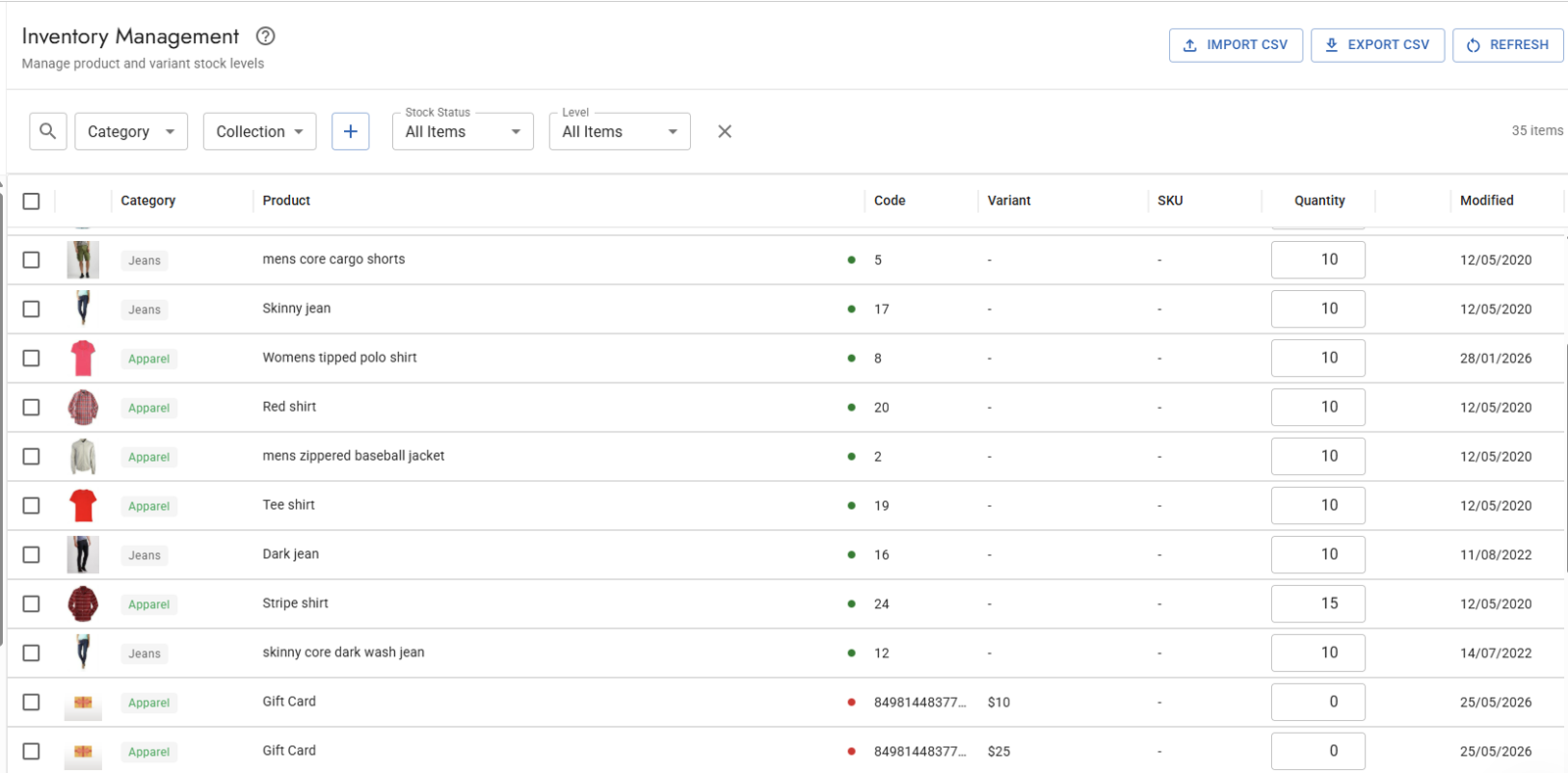
Review Stock Levels: View all products and variants with visual stock indicators
-
Update Quantities: Click any quantity field, edit inline, press Enter to save
Common Scenarios
Quick Stock Updates
-
Click quantity field → type new value → press Enter
-
Green/red dots show stock status at a glance
-
Changes save immediately across all catalogs
Bulk Inventory Changes
-
Select multiple items with checkboxes
-
Use "Bulk Edit Quantity" for mass updates
-
Perfect for seasonal adjustments or restocking
Import/Export Operations
-
Export current inventory to CSV for analysis
-
Import updated quantities from spreadsheets
-
Ideal for external inventory management systems
Inline Editing Process
Edit quantities directly in the grid without popup dialogs:
-
Click Quantity Field: Click any quantity cell to start editing
-
Enter New Value: Type the new quantity (0 or greater)
-
Save Changes: Press Enter to save immediately
-
Visual Confirmation: Watch for success message and updated stock indicator
Keyboard Navigation
-
Tab/Shift+Tab: Move between fields
-
Arrow Keys: Navigate within text field (fixed to work properly in V2)
-
Enter: Save current quantity and stay in field
-
Esc: Cancel editing and revert to original value
Stock Status Definition
A product is considered "In Stock" when:
-
Product's Stock Quantity field > 0, OR
-
Any variant's quantity > 0
Visual Indicators
-
🟢 Green Dot: Item is in stock (quantity > 0)
-
🔴 Red Dot: Item is out of stock (quantity = 0)
Product vs. Variant Quantities
Products Without Variants:
-
Quantities stored in "Stock Quantity" field
-
Field automatically added to category if it doesn't exist
-
One quantity per product
Products With Variants:
-
Each variant has individual quantity
-
Variants appear as separate rows, under a product row showing the total
-
The product row is read-only, because it is the total of the variants below it. Edit a variant to change it.
-
Product shows "In Stock" if ANY variant has quantity > 0
-
The product-level "Stock Quantity" field holds that total. Shopify and Etsy imports fill it in, and it is kept in step whenever you change a variant quantity, so
{{Stock Quantity}}in catalog templates always shows current inventory across all variants.
Filter Options
Use powerful filtering to find specific inventory items:
-
Text Search: Search across product names, codes, SKUs, categories
-
Stock Status: All Items / In Stock / Out of Stock
-
Level Filter: All Items / Products Only / Variants Only
-
Category Filter: Filter by specific product categories
Bulk Quantity Updates
Mass update quantities for multiple selected items:
-
Select Items: Use checkboxes to choose products/variants
-
Click "Bulk Edit Quantity": Opens bulk editing dialog
-
Enter New Quantity: Type the quantity to apply to all selected items
-
Confirm Update: Click "Update Quantities" to process all changes
-
Success Confirmation: Watch for completion message
Export Inventory Data
Download inventory data for external analysis or backup:
Export Options:
-
Export All: Downloads complete filtered inventory
-
Export Selected: Downloads only checked items
CSV Format Includes:
-
Product name, code, category
-
Variant information (if applicable)
-
SKU, current quantity, stock status
-
Compatible with Excel and Google Sheets
Import Inventory Updates
Update quantities in bulk from CSV files:
Import Process:
-
Click "Import CSV": Select your CSV file
-
File Validation: System checks format and identifies products
-
Processing: Updates are applied with validation
-
Results Review: Detailed success/error report
CSV Format Requirements
Required Columns:
Code,SKU,Quantity,Product,Category,Variant
PROD001,,50,T-Shirt,Clothing,
PROD002,BLUE-M,25,Polo Shirt,Clothing,Blue-Medium
PROD002,RED-L,30,Polo Shirt,Clothing,Red-Large
Column Specifications:
-
Code: Mandatory for product identification
-
SKU: Required for variant-specific updates
-
Quantity: New quantity value to apply
-
Other Fields: Informational only, ignored during import
Processing Rules:
-
Products identified by Code column
-
Variant Matching Rules:
-
With SKU: Use SKU column for exact variant identification
-
Without SKU: Use Variant column with options separated by |
• Example: "Large|Red" for Size=Large, Color=Red
-
Order must match your product's option sequence
-
No SKU or Variant: Updates product-level Stock Quantity field
-
Categories automatically updated with Stock Quantity field if needed
-
Detailed error reporting for failed items
Using Inventory in Catalogs & Showroom
Stock levels flow automatically into your catalogs, product cards, and showroom. Use them to gate orders, display availability, and filter out-of-stock products.
Integration with Order System
Automatic Stock Management
-
Stock Deduction: Optionally reduce inventory when orders are placed
-
Overselling Prevention: Orders blocked when insufficient stock
-
Real-time Validation: Stock checked during order process
Order Status Integration
-
In-Stock Display: Only available items shown to customers
-
Quantity Limits: Maximum order quantities based on current stock
-
Dynamic Updates: Inventory changes immediately affect order forms
See Online Orders & Payments (V2) for complete order system configuration
Display Stock Information
Show stock levels in your catalogs and showroom:
Basic Stock Display: Add to any text element: {{Stock Quantity}}
Conditional Display:
{{If Stock Quantity > 0}} In Stock: {{Stock Quantity}} available
{{Else}} Out of Stock {{/If}}
Variant Quantities:
{{Variants}} {{Option}}: {{Quantity}} available {{/Variants}}
Dynamic Product Filtering
Automatic Stock-Based Filtering:
-
Products automatically show/hide based on stock status
-
Collection pages update dynamically
-
Showroom respects inventory settings
-
No manual intervention required