
Quick Start
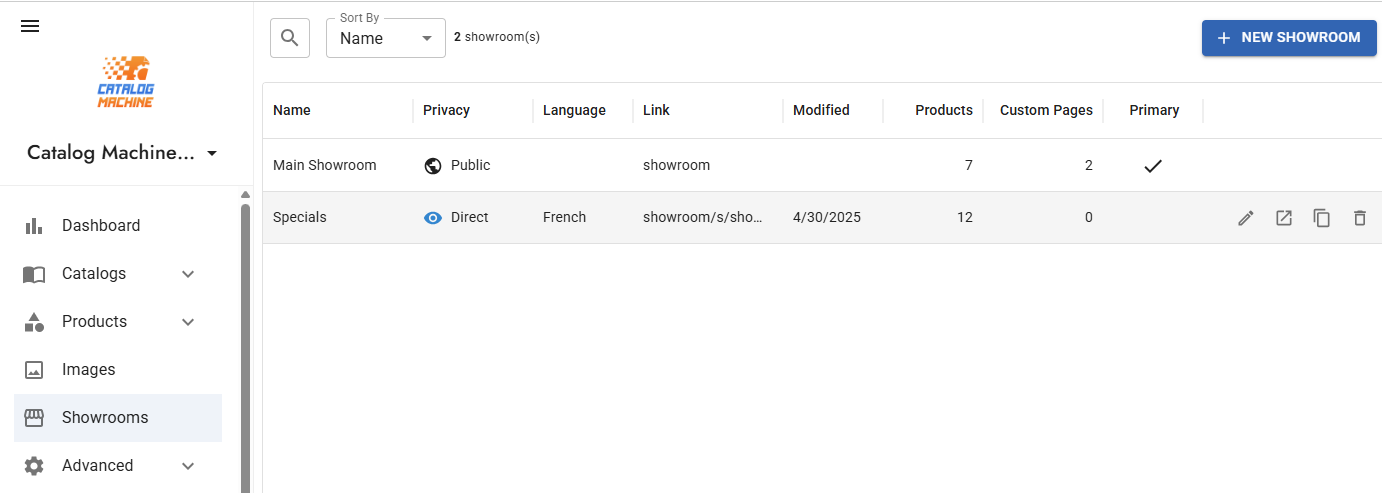
- Go to Showrooms → New Showroom (or edit Main Showroom)
- Select your products and customize appearance
- Share your showroom link with customers
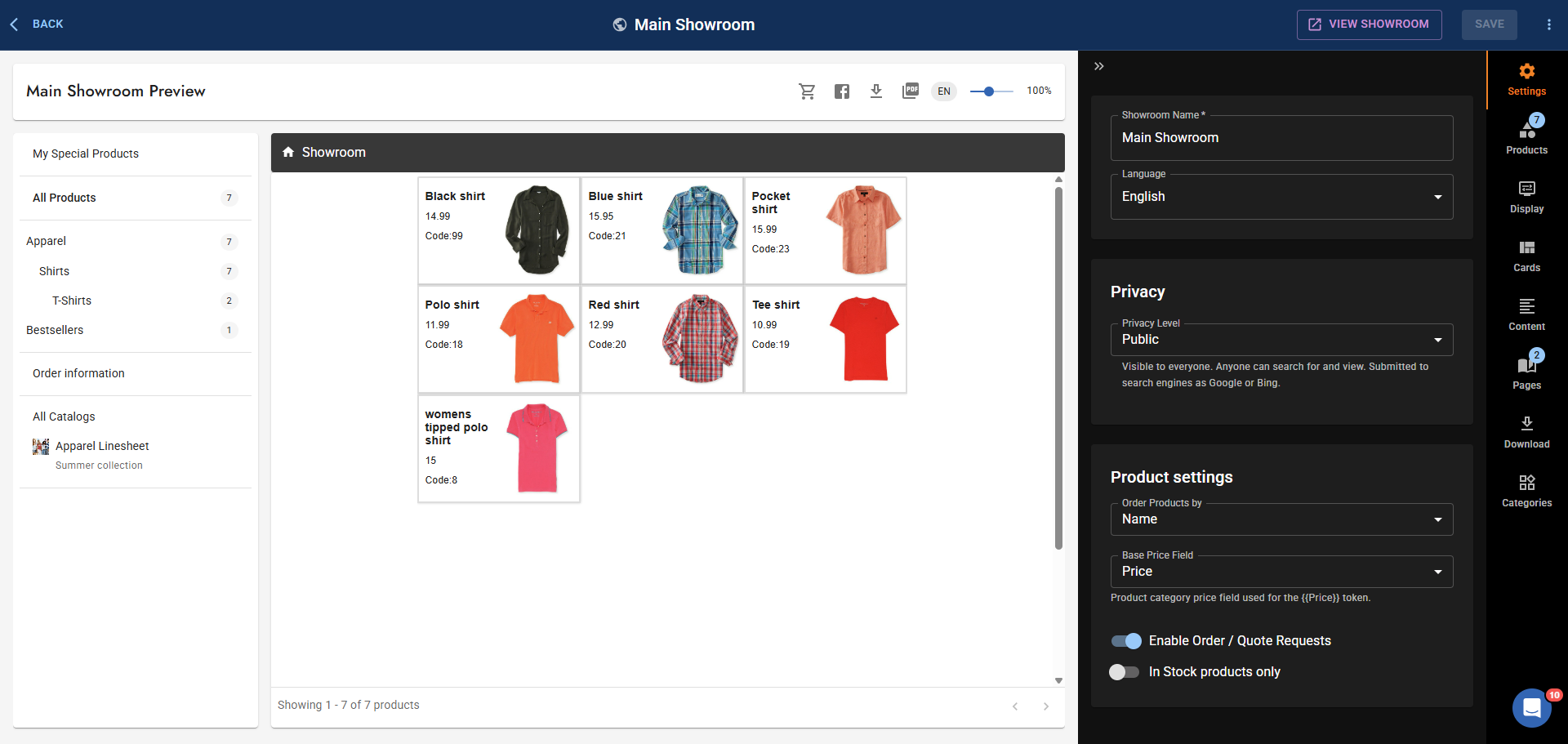
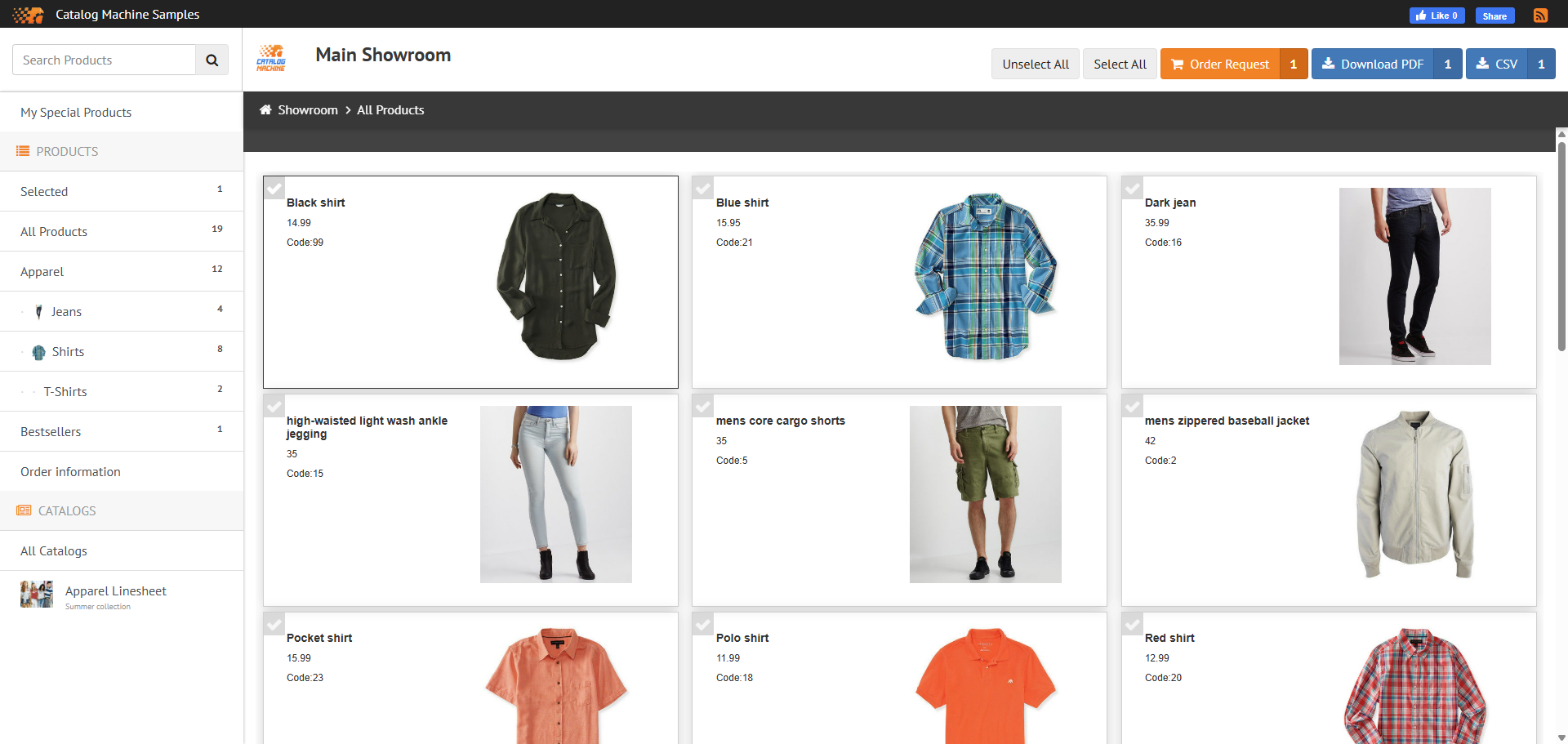
What is Showroom?
The Showroom is a powerful feature that instantly creates a searchable, browsable product microsite for your business. Unlike traditional catalogs, which present a curated selection of products in a fixed layout, the Showroom offers a comprehensive, always-up-to-date product database with minimal setup.
Showroom features:
- Real-time preview
- Advanced products and card selection
- Custom pages with dynamic product lists
Key Benefits
- Complete Product Access: Display all your products in a searchable, filterable interface
- Self-Service Discovery: Let customers find products their way
- Always Current: Updates automatically with your product info
- Low Maintenance: Minimal setup, ongoing management
- Order Capability: Optionally accept order requests or payments
- Mobile-Friendly: Works on all devices
- Flexible Selection: Include products individually or by category/collection
- Downloadable Content: Allow PDF/CSV downloads
Setting Up Your Showroom
1. Create and Configure
- Go to Showrooms and click New Showroom
- (Every account has a Main Showroom by default, set to "Closed")
- Edit the Main Showroom or create additional ones (paid plans only)
2. Configure Tabs
Properties Tab
- Showroom Name: Browser title and SEO
- Permalink: Custom URL slug (e.g., "spring-collection")
- Language: UI labels (product data not automatically translated)
- Privacy Settings:
- Public: Anyone can view, indexed by search engines
- Direct Link: Only accessible with direct URL
- Closed: Not available for public view
- Protected: Password required (PRO+ plans)
- Email: Collect visitor emails (PRO+ plans)
- Base Price Field: Which price field the showroom displays and charges at checkout. One setting per showroom (it appears only here). Orders placed from a catalog use the catalog's own Base Price Field (Catalog Settings) instead.
- Order Options: Enable/disable cart and checkout functionality
Products Tab
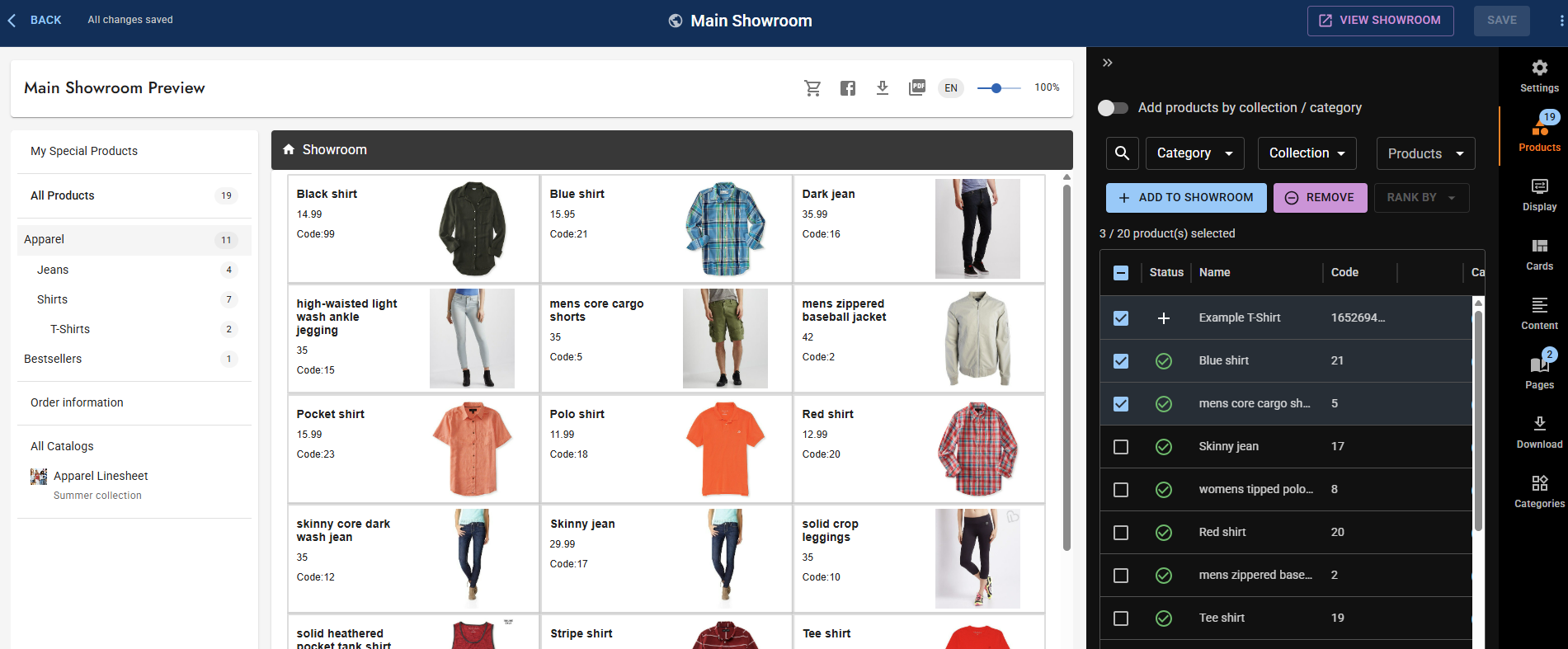
You can add products to your showroom in two ways:
Individual Product Selection (Default)
Select specific products one by one:
- Add/remove individual products
- Change display order using Rank field
- Override product cards per product
- Bulk update selections
- Full control over exactly which products appear
Add by Collection/Category (Group Filter)
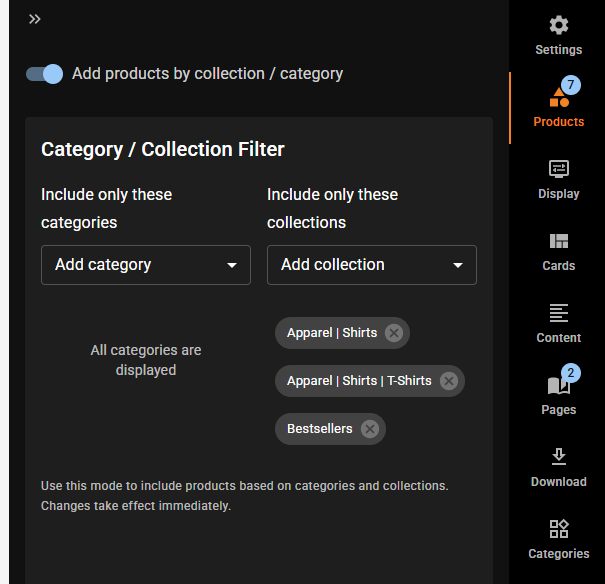
Enable the "Add products by collection / category" toggle to select entire groups:
- Include all products from specific collections
- Include all products from specific categories
- Automatically includes new products added to those groups
- Less granular control, but easier to maintain
- Good for large product sets organized by collection
Note: Showroom navigation is automatically generated based on the products you include. Collections shown in navigation reflect the products present in this showroom, not all collections in your account.
To hide a collection from showroom navigation:
- If using individual selection: Remove all products from that collection
- If using group filter: Uncheck that collection
- Alternatively: Create separate showrooms for different product subsets
Hiding products (settings live elsewhere)
The Products tab only chooses which products are in the showroom. The two ways to hide products are set elsewhere:
In Stock products only (Properties tab)
This is the recommended way to keep sold-out products out of a showroom.
Turn on In Stock products only in Showroom → Properties. Out-of-stock products stay in their collections and keep their order, but are hidden from the showroom. When stock comes back, they reappear in the same place.
- The filter reads the product's In Stock flag, which is recalculated from Stock Quantity and variant quantities on every save, CSV import, and Shopify import. No manual upkeep.
- You do not need to remove out-of-stock products from collections, or keep a separate "out of stock" collection, to achieve this.
- Catalogs have the same option per product list, set in the product list or AutoGrid settings rather than on the showroom. Turning it on for a showroom does not turn it on for your catalogs.
- If a showroom suddenly shows nothing, check that your products actually track stock. A product with no Stock Quantity value and no variant quantities counts as out of stock and will be hidden.
Hiding one specific product
In Stock products only is a rule about stock. To hide one particular product regardless of stock, open the product -> Showroom & Cards tab -> turn off Display in Showroom, or click the green check in the Status column of Showroom -> Products. The product keeps its collection position and comes back unchanged when you switch it on again. In CSV the column is Showcase (1 visible, 0 hidden).
This applies to showrooms only. Catalog pages and PDFs ignore it. See "Hiding Products Without Deleting Them" in Managing Products (V2).
Display Tab
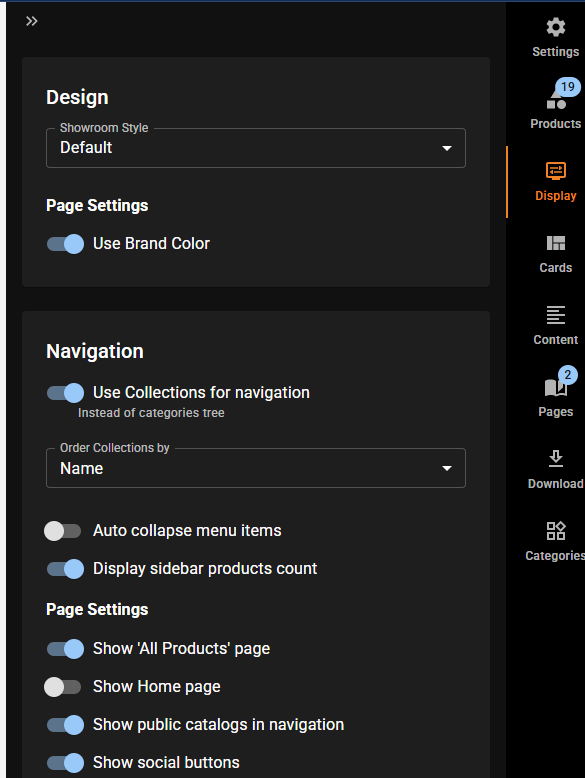
- Navigation Mode:
- Category Tree (default): Organize by product categories
- Collections: Organize by your custom collections
- Auto Collapse: Useful for large menus
- Visual Settings:
- Style: Default or Light theme
- Colors: Customize brand colors for interface
- Additional Options:
- Show social sharing buttons
- Show front page with welcome content
- Show "All Products" page in navigation
Cards Tab
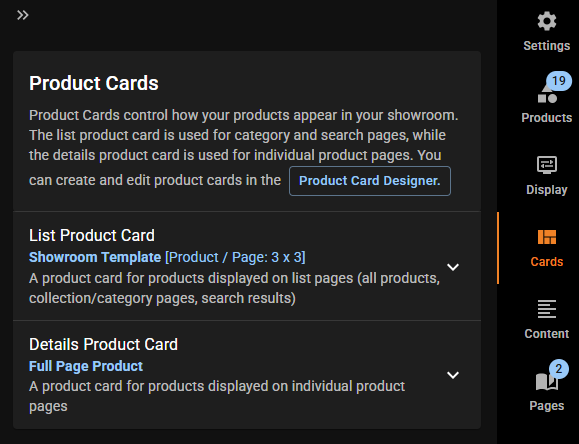
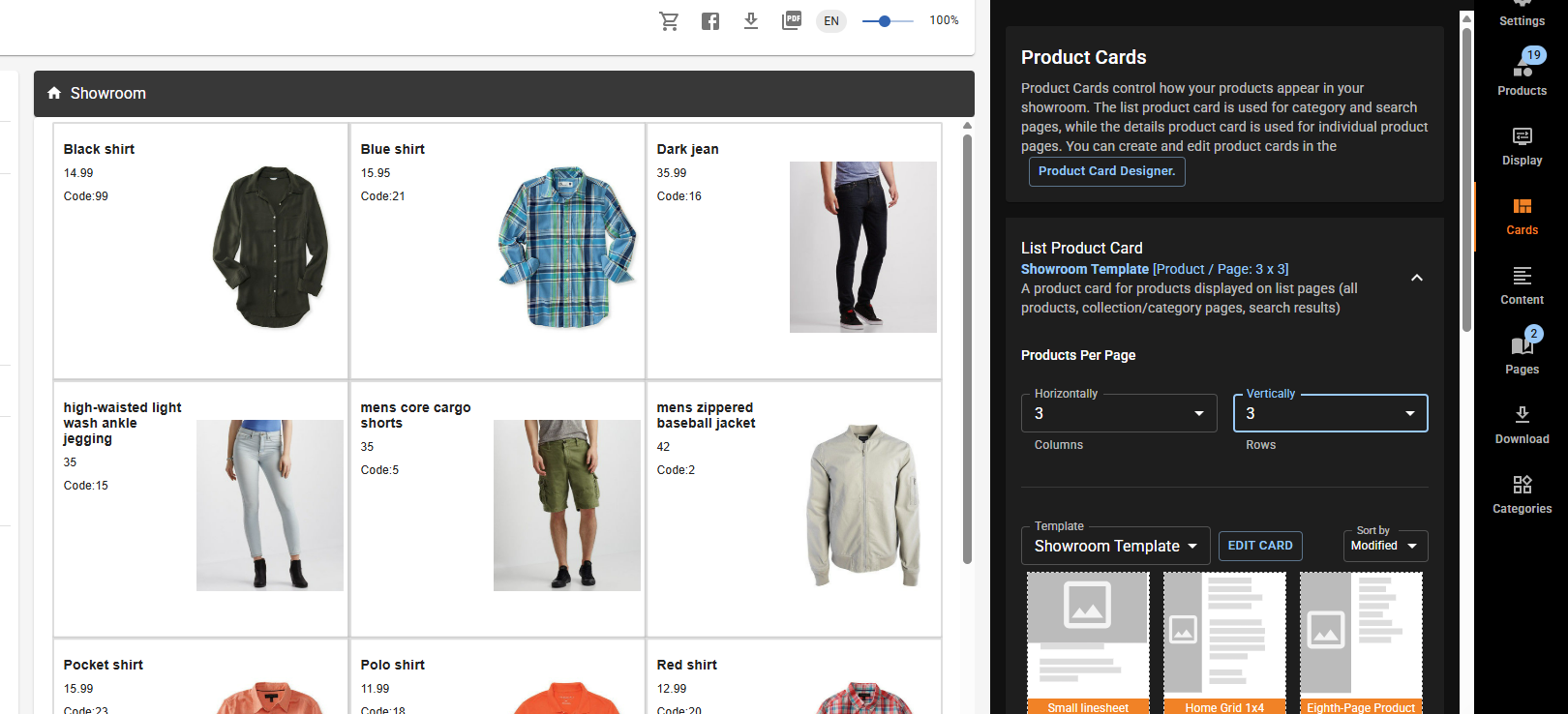
- List View Card: How products appear in grids and search results
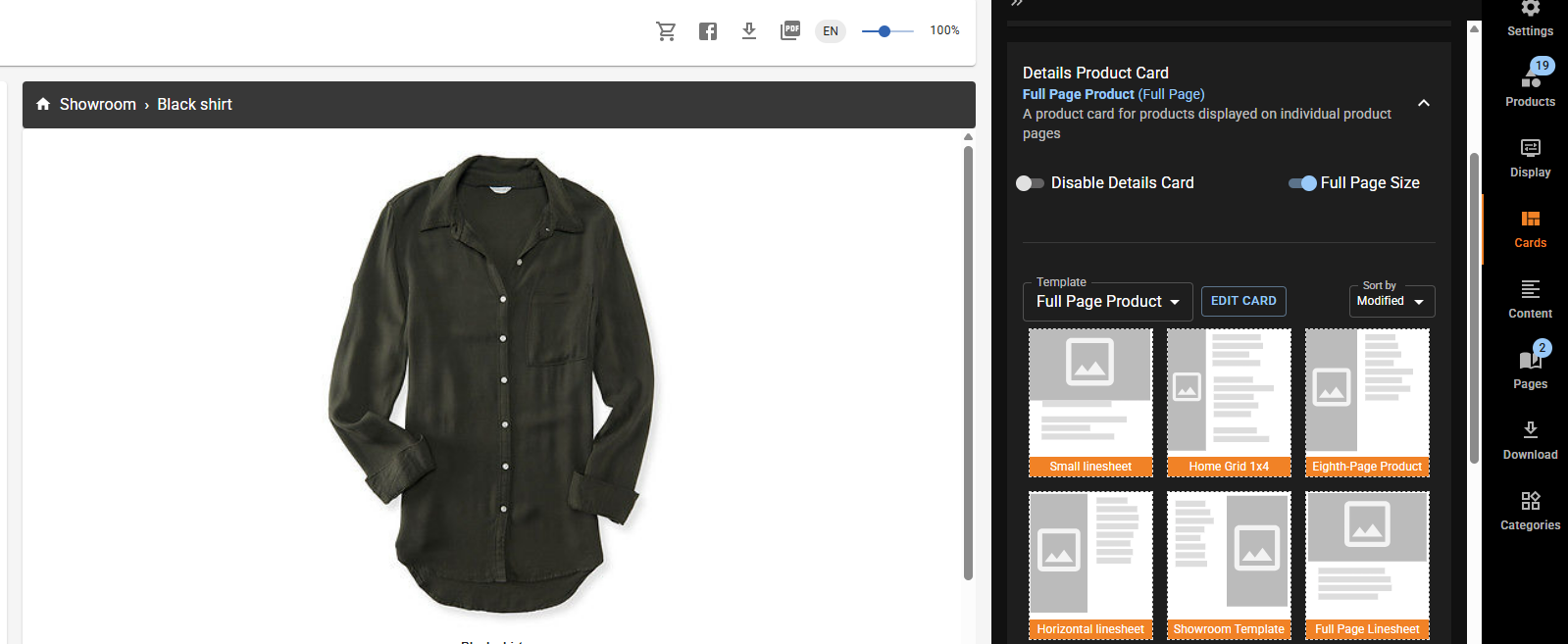
- Details View Card: How products appear on full product pages
- Products Per Page: Set grid pagination size
- Page Size Settings: Configure for both display and PDF generation
- Preview: See changes in real-time as you configure
Product Card Selection Rules (Priority Order)
- Individual product cards (set in Products tab) - highest priority
- Category-specific cards (set in Categories tab) - medium priority
- Default cards (set in Cards tab) - fallback
- Details View can be disabled for list-only display
"I changed the card and nothing happened" — check the category override first. The Cards tab is the fallback layer and the one most users set, so a category card silently wins and the showroom keeps its old design. When one category holds most of the products, the Cards tab looks inert on every showroom in the account. Never diagnose a wrong showroom card from the Cards tab alone.
List View Example:
Details View Example:
Content Tab
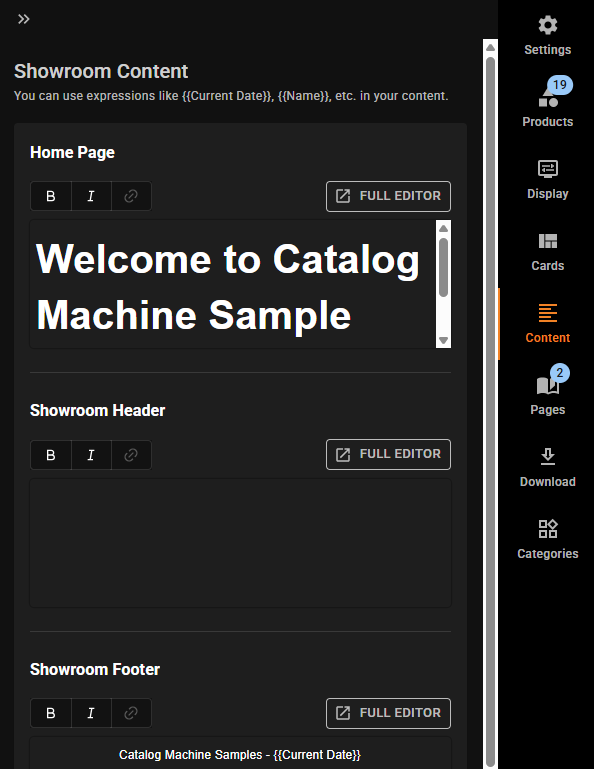
- Home Page Content: Welcome message and introduction (HTML editor)
- Header/Footer: Branding elements that appear on every page
- Custom Parameters: Use dynamic placeholders like
{{Current Date}} - Rich Text Editor: Format text, add links, embed images
Download Tab
- PDF Settings:
- Enable/disable PDF downloads
- Configure custom headers and footers
- Set page size (Letter, A4, etc.)
- Custom button label
- CSV Export:
- Enable/disable CSV product export
- Choose which fields to include
- Custom button label for download link
Categories Tab
- Assign category-specific product cards
- Customize list and detail views per category
- Override default card settings for specific product groups
Pages Tab
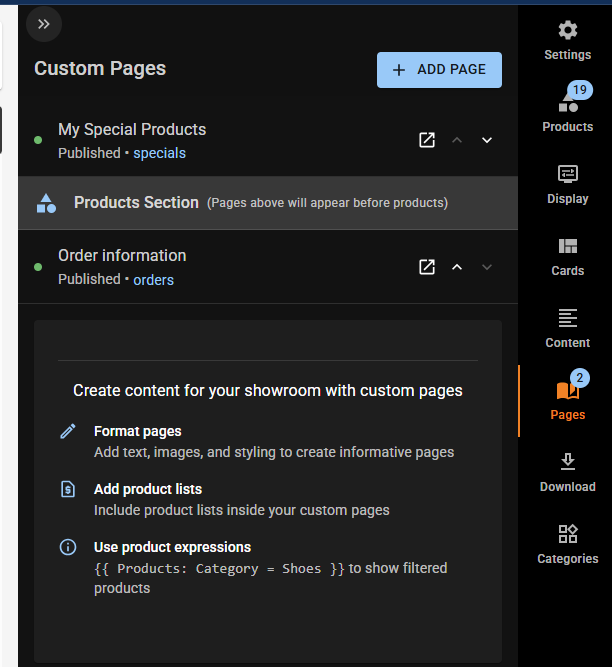
- Add custom pages (About, Contact, Terms of Service, etc.)
- Use rich text editor with full formatting
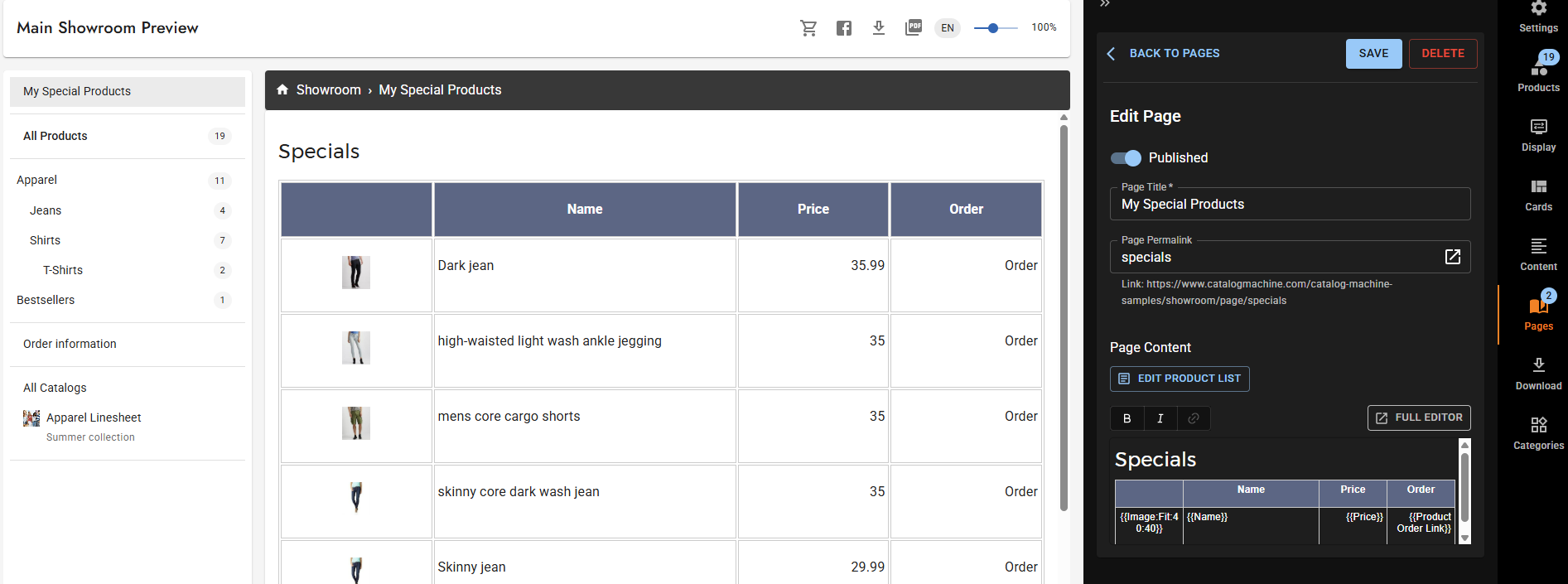
- Support for product expressions to display dynamic lists
- Choose page position in navigation menu
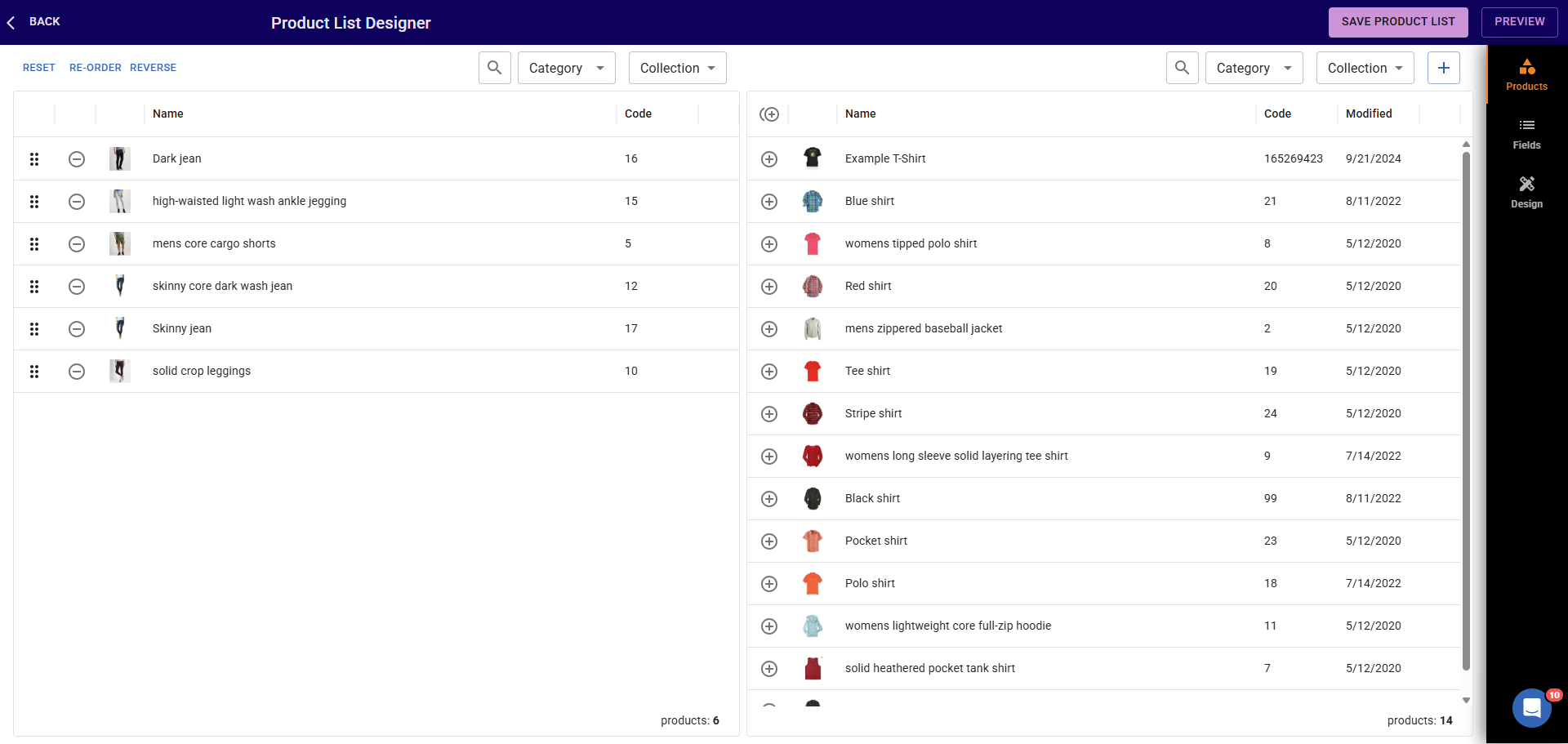
Product List on Custom Pages:
Multiple Showrooms (available in paid plans)
Each Showroom can have:
- Unique product selection
- Different cards, privacy, content, branding, pricing
Browsing and Sharing
- Direct Link:
https://www.catalogmachine.com/{your-namespace}/showroom - Browse Showroom button in editor
- Privacy: Make sure not set to "Closed" before sharing
Advanced Features
Product Expressions
Use in content to display dynamic product lists
Example:
{{Products: Category = T-Shirts}}
{{Name}} - {{Price}}
{{/Products}}
Learn more about product expressions
Embedding
- Enable embedding in Properties tab
- Copy/paste embed code into your website
<iframe
  src="https://www.catalogmachine.com/{namespace}/embed/showroom"
></iframe>
Order Integration
Customers can add products, specify quantities/options, submit requests, and pay (if enabled)
Best Practices
- Organize collections logically
- Use category-specific cards for better presentation
- Optimize images for fast loading
- Provide clear calls-to-action for orders
- Create informative custom pages
- Test on mobile devices
Frequently Asked Questions
Q: How is Showroom different from a Catalog? A: Catalogs are curated, page-based presentations. Showroom is a live, searchable microsite that updates automatically.
Q: How many Showrooms can I have? A: Lite plan allows up to 2 Showrooms. Pro+ plans allow multiple Showrooms, each with unique settings, products, and branding.
Q: Can I customize the appearance? A: Yes—colors, logos, layout, cards, and more.
Q: Can customers download product info? A: Yes, enable PDF and/or CSV downloads.
Q: Does the Showroom support multiple languages? A: Yes, you can select a language in the Properties tab that will translate UI labels. Note that your product data will not be automatically translated.
Q: How do I hide a collection from my showroom navigation? A: Collections in navigation are based on the products included in your showroom. To hide a collection, either remove all products from that collection (individual mode) or uncheck that collection (group filter mode). Alternatively, create separate showrooms for different product groups.
Q: How do I add my logo to the Showroom? A: Go to Account > Business Settings and upload your company logo. It will automatically appear in your Showroom. Available on all plans.
Q: What happens when I copy a showroom? A: When you copy a showroom, the copy is named generically as "Showroom", "Showroom 2", "Showroom 3", etc.—NOT based on the original showroom's name. All settings, products, and pages are copied. After copying, rename it in the Properties tab to identify it easily.
Troubleshooting
My showroom changes aren't appearing (collections, cards, products)
Showroom content is cached server-side for up to 30 minutes. To see changes immediately:
-
Bypass server cache: Add
?preview=123(any number) to your showroom URL:https://www.catalogmachine.com/your-store/showroom?preview=123 -
Browser cache: Also do a hard refresh (
Ctrl+Shift+Ron Windows,Cmd+Shift+Ron Mac) -
Incognito mode: Try a private/incognito window to eliminate browser caching
Changes will appear for all visitors automatically within 30 minutes.
A replaced product image still shows the old picture
This is not the 30-minute cache above, and renaming the image file is not the fix. Image links carry a version marker that changes when you save a new file, so a replacement is served immediately. If a showroom page built earlier still shows the old picture, refresh the CDN copies from Products > Images > ⋮ (More) > "Refresh CDN copies". See Image Management.
My product card changes aren't showing in the showroom
Card assignment follows priority order:
- Individual product cards (highest priority) - set per product in Products tab
- Category-specific cards - set in Categories tab
- Default cards (fallback) - set in Showroom > Cards tab
Check if an individual product or category has a different card assigned that overrides your default card changes.
Collections not appearing in showroom navigation
- Check Showroom > Display > Navigation Mode is set to "Collections" (not "Category Tree")
- Verify collections are explicitly added to the showroom in Showroom > Collections tab
- Ensure collections have visible products (check "In Stock" filter if enabled)
Product has stock but is still hidden (or "no products found" with the In Stock filter on)
The "In Stock products only" filter reads the product's saved In Stock flag, not the quantity shown on screen. A product can show a quantity and still carry a stale flag, most often one last saved before 2026-09-22, when an editor bug could leave the flag off. To refresh it:
- Open the product and click Save once (no change needed). The flag is recalculated from Stock Quantity and variant quantities on every save.
- For many products at once, re-run the CSV or Shopify import, or update quantities in Products > Inventory.
If it is still hidden after a save, the cause is not stock: check Display in Showroom and the product selection above.